Overview
The ThinkCentre M70q and the ThinkPad X1 Carbon Gen 13 sit at opposite ends of Lenovo’s commercial lineup — one is a “Tiny” form-factor desktop built for stationary office and multi-monitor setups, the other is a flagship 14″ ultraportable built for mobility. Comparing them isn’t really about which one is “better” in a vacuum; it’s about which form factor fits your workflow. The M70q trades portability for expandability, upgrade headroom, and a lower entry price. The X1 Carbon trades that flexibility for an extremely light chassis, a long battery, and a premium display. This guide breaks down both machines so you can decide which fits your work, budget, and mobility needs.
Key Specifications Comparison
| Category | ThinkCentre M70q (Gen 5/Gen 6) | ThinkPad X1 Carbon Gen 13 |
|---|---|---|
| Form factor | 1-liter “Tiny” desktop | 14″ ultraportable laptop |
| Processor | Intel Core Ultra 3/5/7 (Series 2, “Arrow Lake-H/U”) | Intel Core Ultra 5/7 (Series 2, “Lunar Lake” or “Arrow Lake”) |
| Memory | Up to 64GB DDR5, user-upgradeable (SODIMM) | Up to 32GB LPDDR5x, soldered (not upgradeable) |
| Storage | Up to 2x M.2 NVMe SSD slots | 1x M.2 2280 NVMe SSD (PCIe Gen 5) |
| Graphics | Integrated Intel Graphics (chip-dependent) | Integrated Intel Arc 130V/140V Graphics |
| Display | Sold without a display (BYO monitor) | 14″ WUXGA or 2.8K OLED, up to 120Hz |
| Weight | ~1.25 kg (unit only) | ~986g–1006g |
| Battery | None (desktop, wall powered) | Up to 57Wh, all-day battery life |
Design and Build Quality
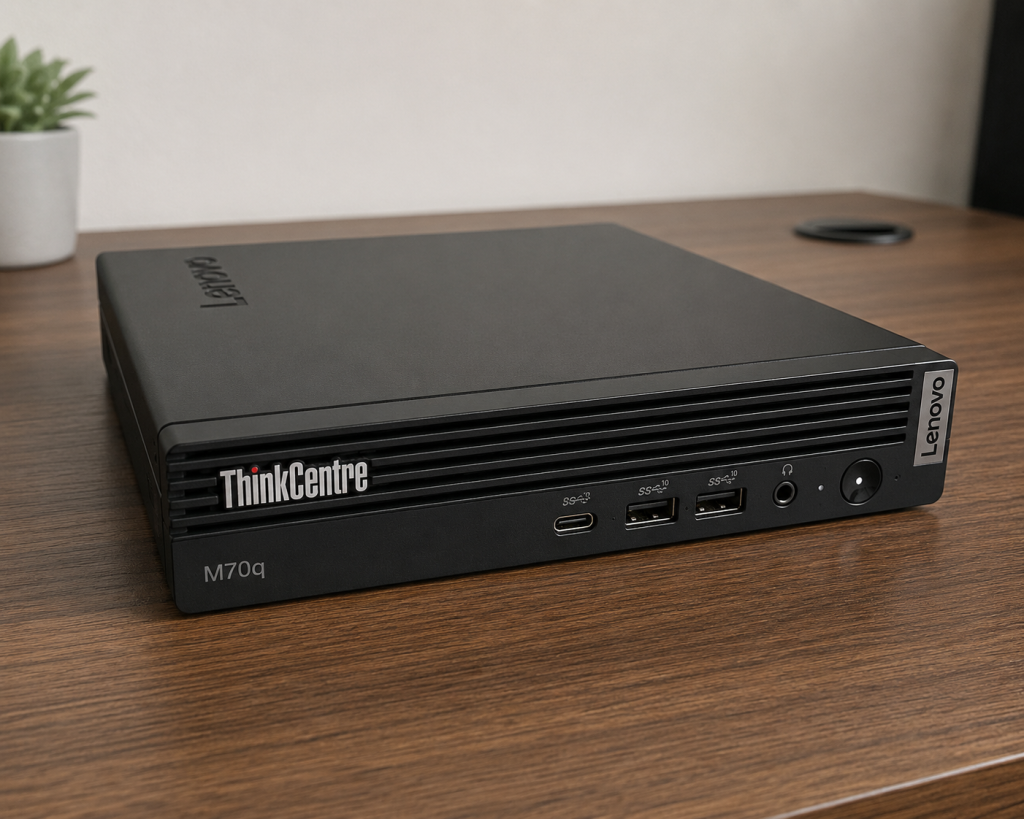
The M70q follows Lenovo’s “Tiny” desktop philosophy: <cite index=”1-1″>it weighs around 1.25 kg and comes in a raven black case, with support for VESA mounting so it can be tucked behind a monitor.</cite> It’s built to disappear on or under a desk rather than to be admired, with a metal chassis geared toward office durability rather than travel resilience.
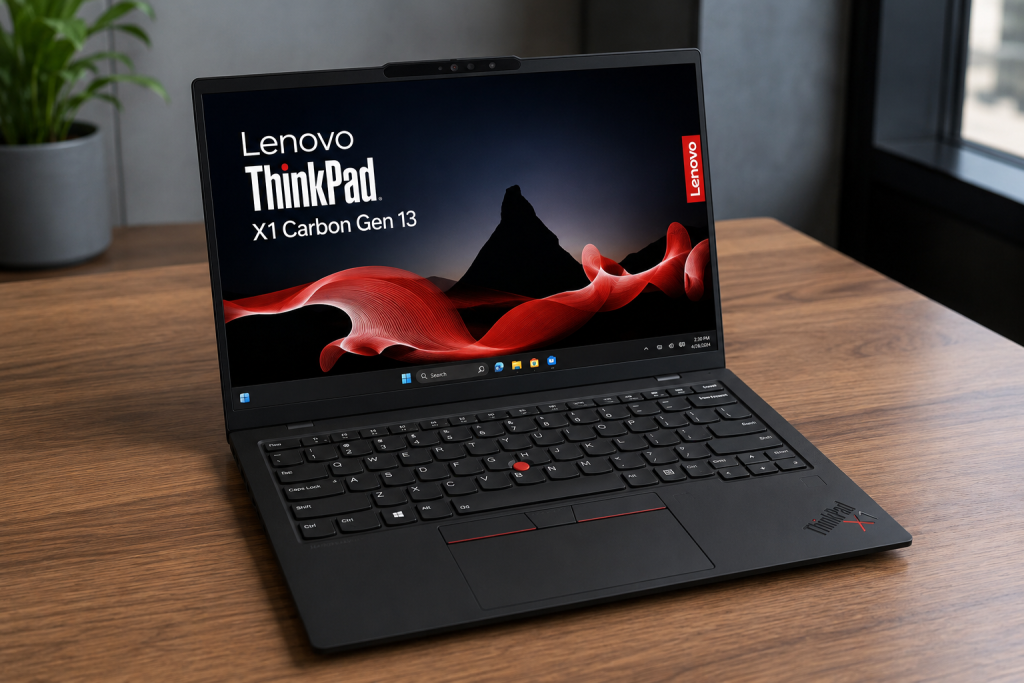
The X1 Carbon Gen 13, by contrast, is Lenovo’s showcase for ThinkPad craftsmanship. It uses a <cite index=”15-1″>carbon fiber top panel paired with a magnesium or aluminum bottom, and weighs from around 986 grams on Lunar Lake configurations</cite> — genuinely light for a business laptop with this level of durability testing. Familiar ThinkPad design cues carry over, including the signature UltraNav trackpoint and a lay-flat 180-degree hinge, giving it a distinct professional identity the M70q, as a headless desktop, doesn’t need to compete on.
Performance and Processor
Both machines have moved to Intel’s Core Ultra “Series 2” silicon, but they’re tuned for different jobs. The M70q’s desktop form factor allows for higher sustained power draw, so its Core Ultra chips can hold boost clocks longer under continuous load — useful for compiling code, running VMs, or multitasking with many apps open simultaneously.
The X1 Carbon’s Lunar Lake-based Core Ultra 7 258V and similar chips are tuned for efficiency-per-watt rather than raw sustained throughput, since thermal headroom in a slim chassis is limited. Reviewers have found day-to-day responsiveness on the X1 Carbon to be excellent for typical productivity work, though it isn’t intended to match a desktop’s sustained multi-core performance.
Bottom line: for CPU-intensive, long-duration workloads, the M70q desktop has the performance edge thanks to better cooling and sustained power delivery. For everyday responsiveness in a mobile package, the X1 Carbon holds its own without breaking a sweat.
Memory and Storage Options
This is one of the clearest differentiators between the two machines.
- ThinkCentre M70q: Uses conventional SODIMM DDR5, which on many configurations remains user-upgradeable after purchase. <cite index=”2-1″>Storage is handled through M.2 2280 NVMe PCIe 4.0 SSD slots</cite>, and the chassis provides multiple expansion slots for WLAN and SSD combinations, giving buyers room to add or swap drives later.
- ThinkPad X1 Carbon Gen 13: Memory is <cite index=”12-1″>32GB of LPDDR5x soldered directly to the board</cite>, which is fast but fixed at purchase — there’s no user upgrade path. Storage is a single <cite index=”14-1″>PCIe Gen 5 NVMe SSD, offered in capacities up to 2TB</cite>, also generally non-upgradeable after purchase given the compact chassis design.
If future-proofing and the ability to add RAM or storage down the line matters to you, the M70q is significantly more flexible.
Graphics Performance
Neither machine is aimed at gaming or GPU-heavy creative work, but there are differences worth noting. The M70q relies on Intel’s integrated graphics tied to whichever Core Ultra chip is configured, adequate for office work, multiple external displays, and light photo/video editing, but not built for 3D rendering or gaming.
The X1 Carbon’s Lunar Lake configurations pack Intel Arc 140V integrated graphics, which punches noticeably above older integrated GPUs — <cite index=”11-1″>reviewers noted the X1 Carbon can handle modern games like Call of Duty: Black Ops 6 reasonably well thanks to ongoing improvements in integrated graphics</cite>, something that would have been unthinkable on ultraportables a few years ago. For either device, serious GPU workloads would call for an external GPU or a dedicated workstation instead.
Display Quality (ThinkPad X1 Carbon Gen 13)
Since the M70q ships without a display, this category is specific to the X1 Carbon. Buyers can choose between a WUXGA (1920×1200) panel or a step-up <cite index=”14-1″>14″ 2.8K (2880×1800) OLED panel running at 120Hz with 100% DCI-P3 coverage and 400 nits brightness</cite>. Reviewers have praised the OLED option specifically for combining OLED’s deep contrast with an anti-reflective coating that cuts down on the glare OLED panels are typically known for — <cite index=”11-1″>one review called the result “basically perfect” for eliminating the usual OLED reflectivity trade-off</cite>, while retaining the format’s characteristic inky blacks and vivid color.
For the M70q, display quality depends entirely on whatever monitor you pair it with — which is itself an advantage if you already own a preferred display or want a large, high-refresh monitor a laptop panel couldn’t match.
Connectivity and Ports
The M70q’s desktop form factor gives it more room for full-size ports, generally including multiple USB-A, USB-C, DisplayPort, and Ethernet, plus support for triple-monitor configurations depending on the chip’s integrated graphics. Wireless connectivity includes Wi-Fi 6E/7 depending on configuration.
The X1 Carbon Gen 13 is necessarily more compact in its port selection, relying on Thunderbolt 4/USB-C for most high-bandwidth connections (display output, charging, docking), supplemented by a smaller number of USB-A ports and an HDMI output. It supports Wi-Fi 7 as well. For heavy docking or multi-peripheral setups, the X1 Carbon leans on Thunderbolt docks more than the M70q needs to.
Upgrade and Expandability
This category strongly favors the M70q. Its chassis is designed around toolless or minimal-tool access, with <cite index=”1-1″>three M.2 slots for WLAN and dual SSD configurations</cite>, replaceable RAM, and VESA-mount flexibility for repositioning. It’s a desktop built with IT departments and long-term serviceability in mind.
The X1 Carbon Gen 13 is essentially sealed once configured: RAM is soldered, and while the SSD is technically replaceable by a technician, Lenovo doesn’t design the chassis for easy end-user upgrades. What you order is largely what you’re stuck with for the life of the machine — a reasonable trade-off for the weight and thinness it achieves.
Power Consumption and Efficiency
The M70q, as a plugged-in desktop, draws more continuous power than a laptop but remains efficient relative to full-tower desktops, sipping well under 100W for typical office workloads thanks to its compact power supply and mobile-derived chip designs.
The X1 Carbon is built around battery efficiency first. Lenovo’s own testing on comparable configurations cites <cite index=”16-1″>battery life up to roughly 13.9 hours of continuous video playback under JEITA testing, and up to 28 hours in local video playback at lower brightness</cite> — real-world mixed use will land lower, but it’s built to comfortably last a full workday untethered, something the M70q simply isn’t designed to do.
Business and Professional Use Cases
The M70q suits fixed workstations: reception desks, call centers, back-office accounting, point-of-sale systems, or any role where the employee works from one location and values a large external display over portability. Its small footprint also makes it a favorite for hot-desking setups where the PC stays docked to a monitor and peripherals.
The X1 Carbon is built for road warriors, consultants, executives, and hybrid workers who move between meetings, offices, and home. Its combination of weight, battery life, and premium display makes it well suited for presentations and travel where a docked desktop isn’t an option.
Which Device Is Better for Students?
For most students, the answer depends heavily on living situation and budget rather than raw specs.
- If you live in a dorm or apartment and rarely need to carry your computer to class, the M70q paired with a monitor can offer more performance and expandability per dollar, plus the option to upgrade RAM/storage as your needs grow.
- If you’re moving between classes, the library, and group study sessions, the X1 Carbon’s weight and battery life are hard to beat, even though you’ll pay a premium for that portability.
Students on tight budgets who need to carry a laptop daily but not the premium X1 Carbon price tag may also want to consider other ThinkPad lines (like the T-series), which weren’t part of this comparison but sit between these two in price and portability.
Which Device Is Better for Office Work?
For a fixed office desk with an external monitor (or several), the M70q is generally the more sensible and cost-effective choice — better sustained performance, easier IT servicing, and no need to pay for a battery or premium chassis you won’t use. For roles that mix in-office work with travel, client visits, or remote work days, the X1 Carbon removes the need to maintain two separate machines, at a higher upfront cost.
Pros and Cons
ThinkCentre M70q
Pros:
- Strong price-to-performance ratio
- User-upgradeable RAM and storage
- Small footprint, VESA-mountable
- Better sustained performance under heavy load
Cons:
- No display, keyboard, or mouse included in base configs
- Not portable — desk-bound by design
- Integrated graphics only, no discrete GPU option
- Requires external monitor investment
ThinkPad X1 Carbon Gen 13
Pros:
- Exceptionally light for its durability and feature set
- Excellent OLED display option
- All-day battery life
- Premium, well-regarded ThinkPad build quality
Cons:
- RAM is soldered and non-upgradeable
- Single SSD slot limits storage expansion
- Significantly more expensive than the M70q for comparable CPU tier
- Limited port selection versus a desktop
Price and Value for Money
The M70q consistently starts at a lower price point than the X1 Carbon, even before factoring in that the X1 Carbon’s price doesn’t include the added cost of a comparable monitor, keyboard, and mouse if you’re buying from scratch. However, once you add a quality display to the M70q, the total cost gap narrows — and for buyers who already own peripherals, the M70q’s advantage grows further.
The X1 Carbon’s premium pricing reflects its materials, display technology, and engineering for weight reduction — costs that are difficult to avoid in an ultraportable chassis. For buyers who need genuine portability, there’s no real substitute at the M70q’s price point; that flexibility simply isn’t available in a desktop.
ThinkCentre M70q vs ThinkPad X1 Carbon Gen 13: Side-by-Side Comparison Table
| Feature | ThinkCentre M70q | ThinkPad X1 Carbon Gen 13 |
|---|---|---|
| Best for | Fixed desks, IT-managed fleets, budget-conscious buyers | Mobile professionals, travelers, presentations |
| Portability | None (desktop) | Excellent (~1kg) |
| CPU sustained performance | Higher | Good, but power-limited |
| RAM upgradeability | Yes (SODIMM) | No (soldered) |
| Storage expansion | Up to 2 SSD slots | 1 SSD slot |
| Display | Not included | Up to 2.8K 120Hz OLED |
| Battery | N/A (wall powered) | Up to ~14hrs mixed use |
| Starting price tier | Lower | Higher |
| Ideal environment | Office, hybrid desk setup | On-the-go, hybrid work, travel |
Frequently Asked Questions (FAQs)
Can the ThinkCentre M70q be used as a home theater PC? Yes — its small size and VESA mount support make it suitable for that role, though you’ll need to add your own display and remote input method.
Does the ThinkPad X1 Carbon Gen 13 support RAM upgrades? No. Memory is soldered LPDDR5x and fixed at the time of purchase, so it’s worth configuring enough RAM upfront.
Which is better for gaming? Neither is designed for serious gaming, but the X1 Carbon’s Intel Arc 140V graphics (on Lunar Lake configurations) outperform the M70q’s typical integrated graphics for light or older titles.
Can I connect multiple monitors to both devices? Yes, both support multi-monitor setups, though exact limits depend on the specific chip and port configuration selected.
Is the M70q cheaper overall? Generally yes for the base unit, but total cost depends on whether you already own a monitor, keyboard, and mouse.
Final Verdict
There isn’t a universal winner here because these machines aren’t really competing for the same buyer. If your work happens at a single desk and you want the most computing power and future upgrade flexibility per dollar, the ThinkCentre M70q is the smarter buy. If your work follows you — between meetings, offices, and travel — and you value a premium display and all-day battery life more than expandability, the ThinkPad X1 Carbon Gen 13 is worth the premium. The right choice comes down to how and where you actually work, not which spec sheet looks better on paper.